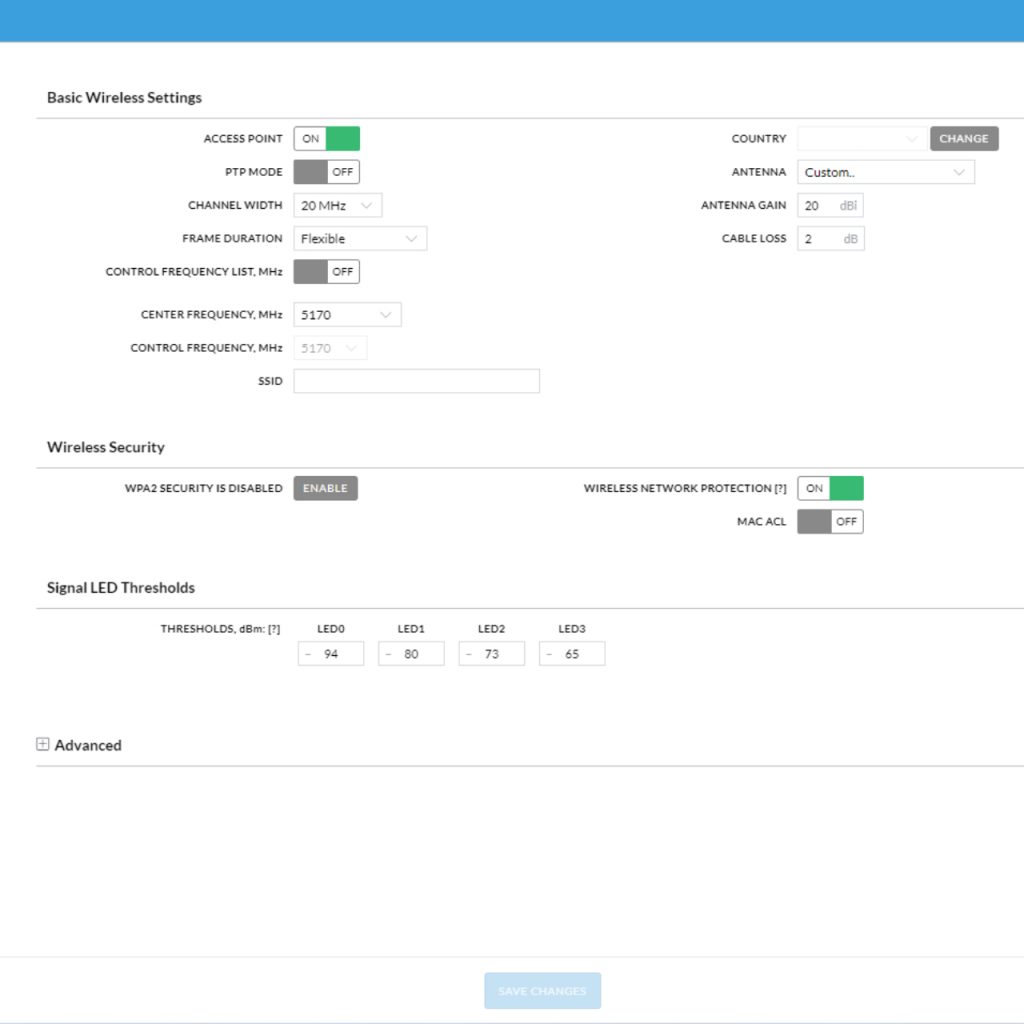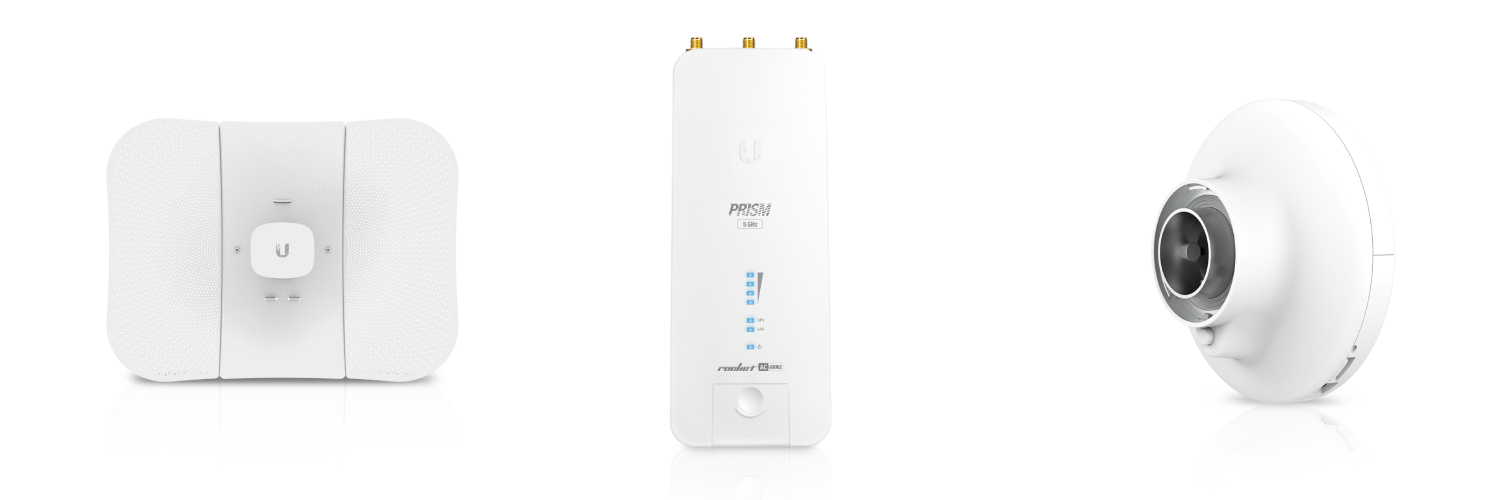
At the time of writing the latest firmware for popular Ubiquiti Point to Point/Point to Multipoint AP’s such as the RP-5AC-GEN2 and PS-5AC is v8.7.11. So far Ubiquiti have not made it possible to disable the need for a preshared key via the GUI i.e. you will not be able to connect a compatible device to the AP without having matching credentials. To get around this we can edit the system config via the CLI:
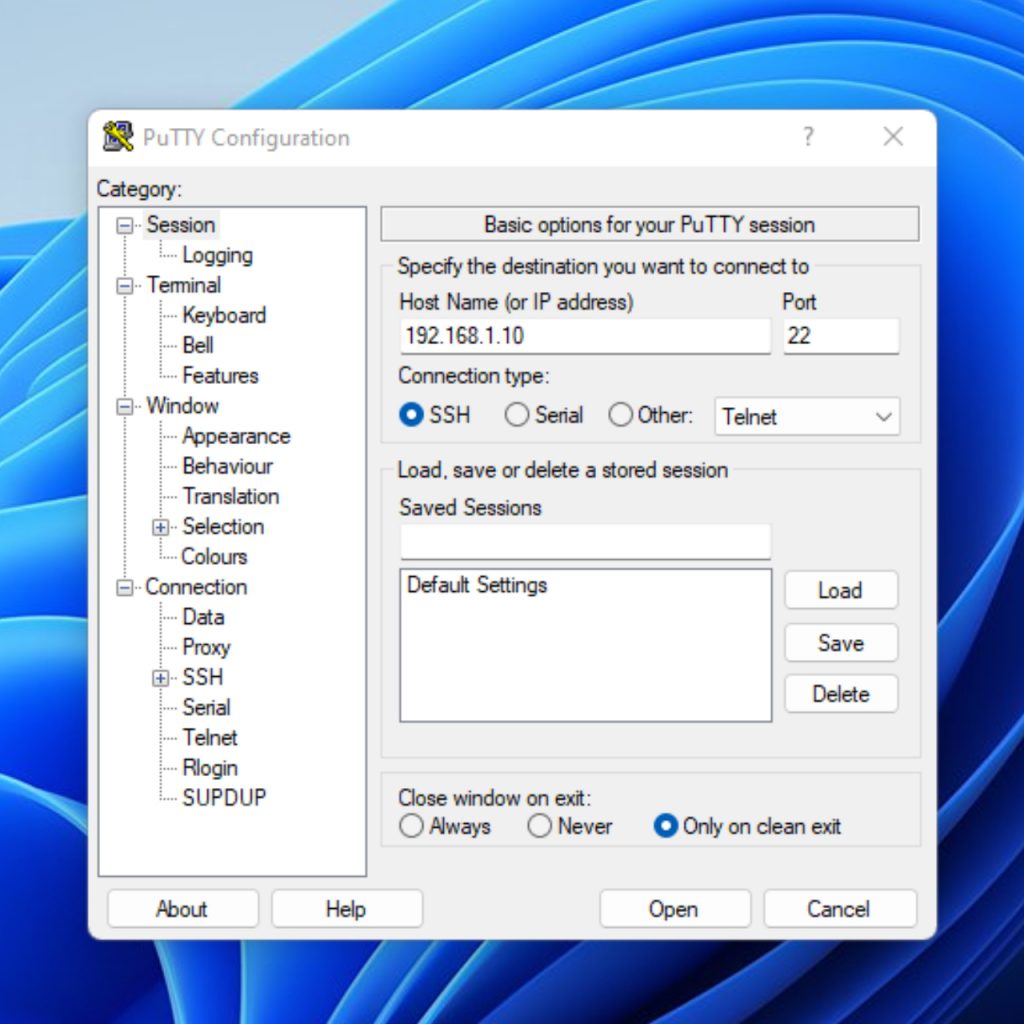
To get started open up your favorite terminal and connect to your AP via SSH. I will be using PuTTy. In the “Host Name” field put in the IP address of your AP. Make sure that “SSH” and “Telnet” are selected and that you are using Port 22, then press “Open”. Look at the screenshot below for reference.
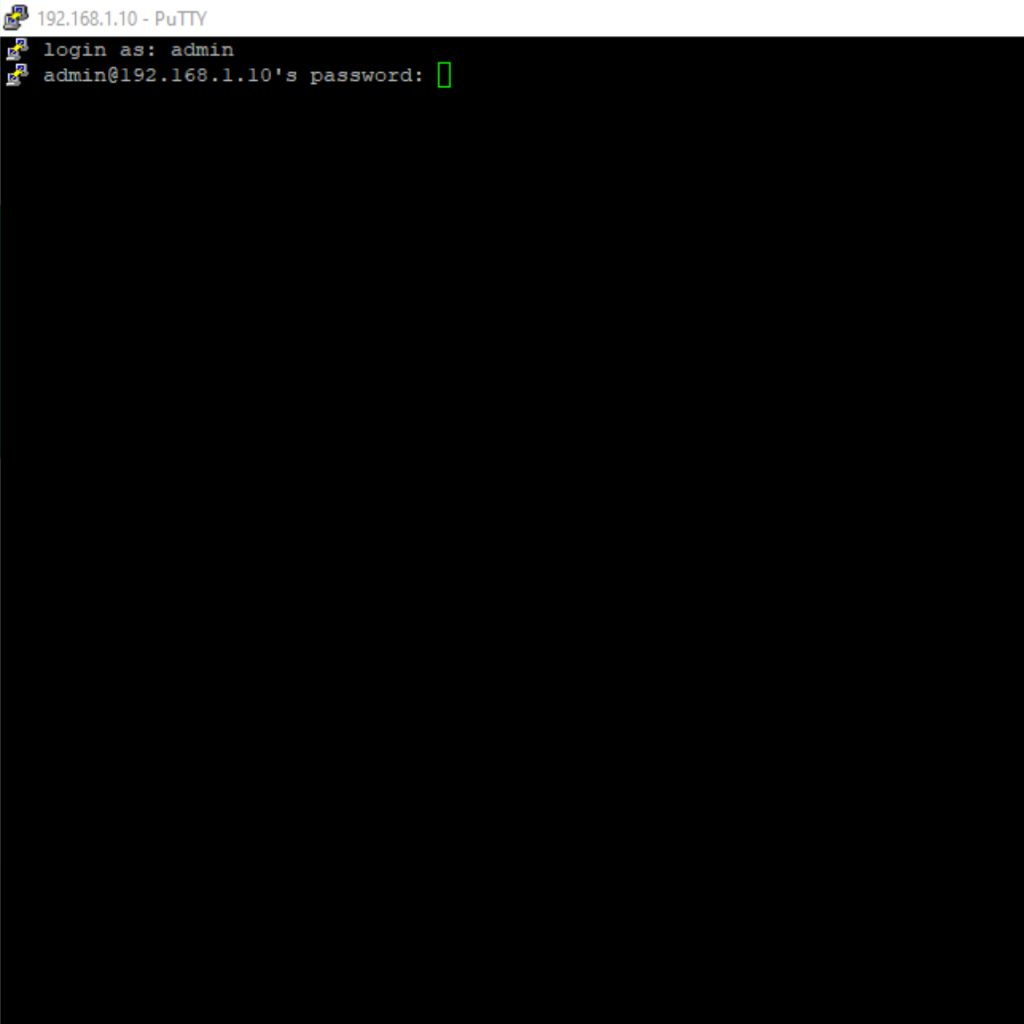
Once connected to the AP login using the credentials you use to login with using the GUI:
Next we are going to enter the system config. To do this we will type the following and press enter:
vi /tmp/system.cfg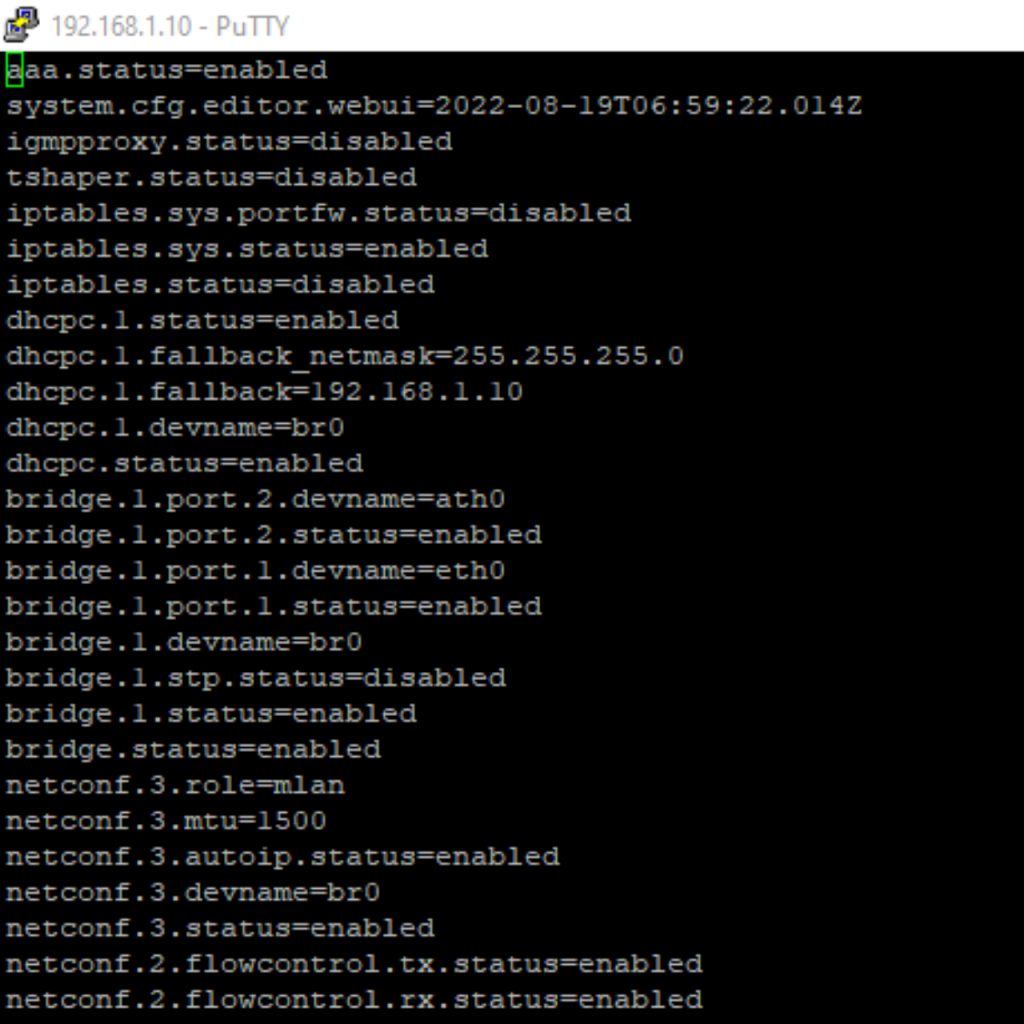
Once you’ve opened up the system config you’re going to see a wall of text. Each one of these paragraphs control a specific part of the AP’s configuration. The one we are looking for is “aaa.status=enabled”. We are going to change that you be “aaa.status=disabled. To do this press the “A” or “I” key on your keyboard to enter edit mode. You can move your cursor around with the arrow keys. Simply backspace or delete the word “enabled” and replace it with the word “disabled”. The paragraph should now look like this:
aaa.status=disabled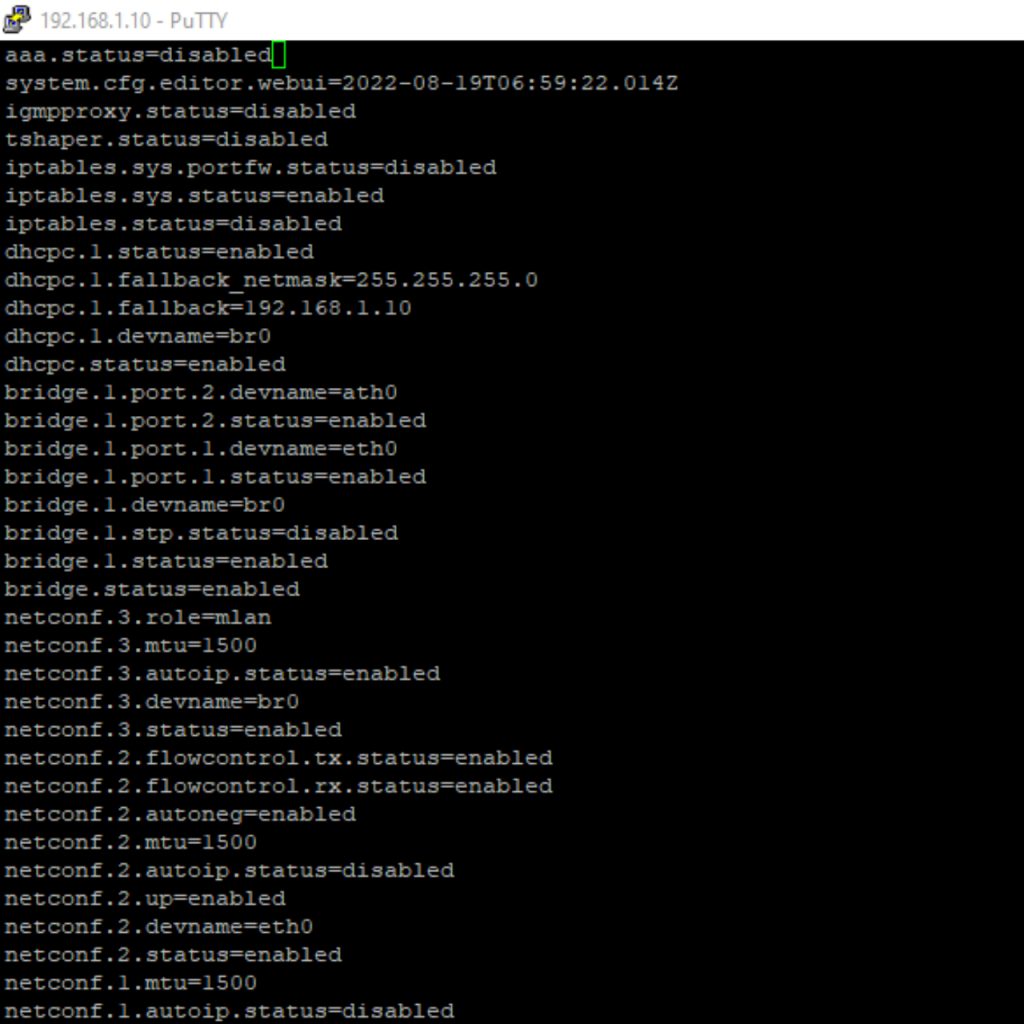
Now press “CTRL + C” on your keyboard to exit edit mode. Next press “Shift + :” – Your cursor should now jump to the bottom of the page and you will be able to type commands in freely again.
We need to save these changes to the system config, so to do this we type is the write quite command and press enter:
wq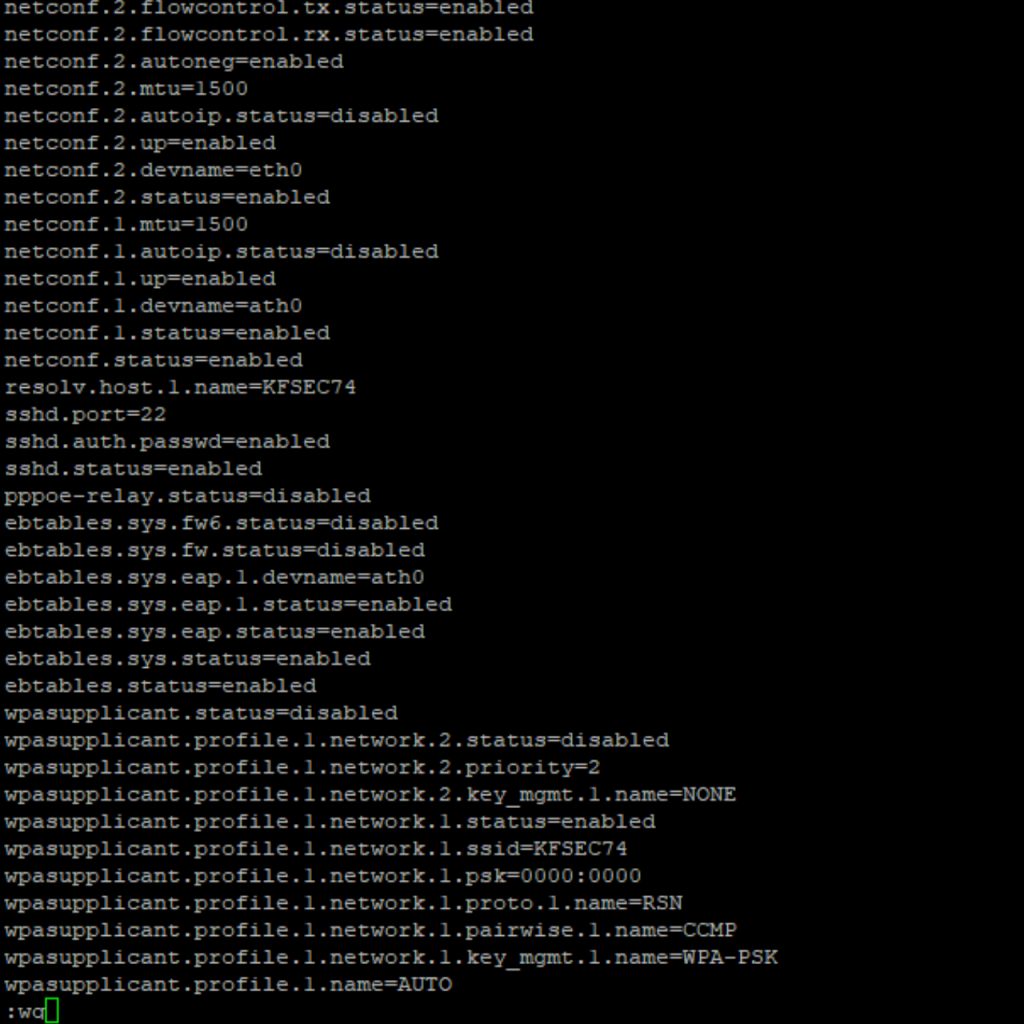
Next we tyep “save”, and press enter:
save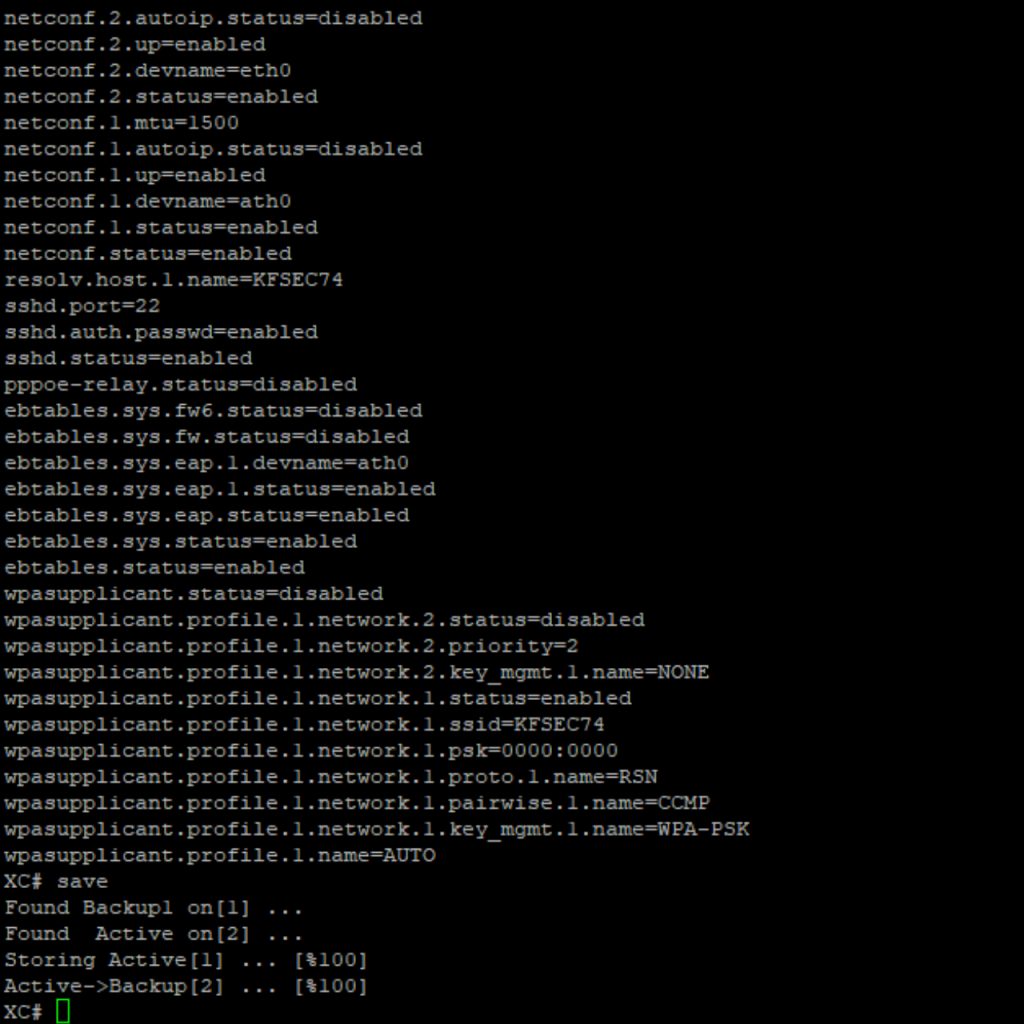
That’s it, you can now reboot the AP and the config will save. To reboot enter:
rebootIf you head back to the AP’s GUI you will now see that the preshared key field is gone, and has now been replaced with a button that says “Enable”. Pressing this will reverse the changes. To connect devices to this AP, simply leave the preshared key field blank.